Adding a New Product
The Ubercart module comes with a new content type called Product.
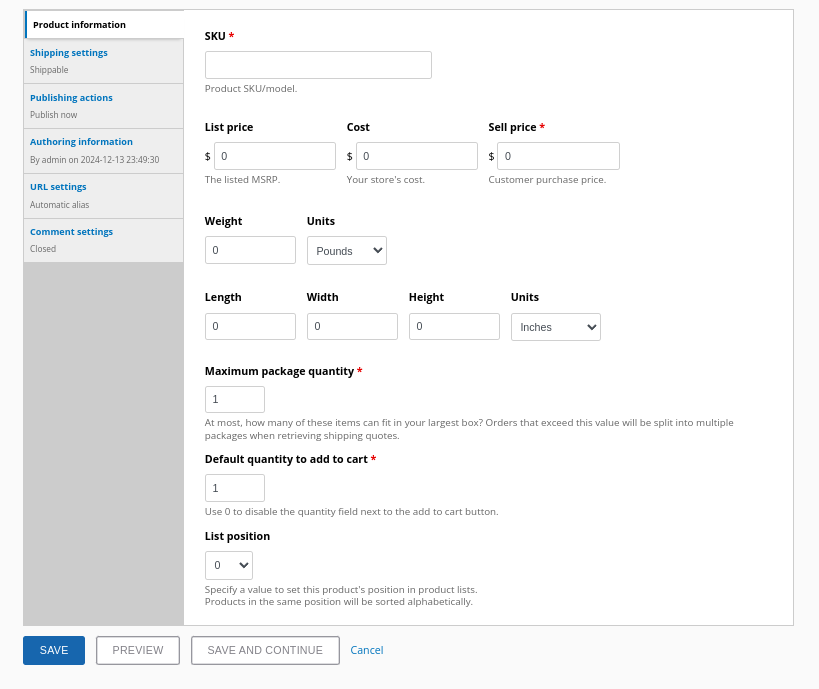
To add a new product, navigate to Content -> Add Content -> Product. In addition to the custom fields you have added to your product, you have the following fields available.

Tip: If you don’t see the Product option under Add Content, check the Permissions page to ensure your user role has the necessary permissions to create and edit Product nodes.
Product Settings
These settings control how products function within the catalog and cart systems. Key settings include:
- Product Listing Display: Defines the number of rows per page in product lists.
- "Add to Cart" Form Settings: Adjusts how the form appears and functions.
If Product Kits are enabled, additional settings determine how kits appear in the shopping cart:
- Display Options: Kits can be shown as a single unit or as individual products. While the Order module always treats kits as individual items, future modules may apply kit-based discounts. This prevents situations where customers could remove part of a kit but still receive the discount.
Product Fields
Product nodes store various types of product information. However, not all details are relevant to customers. Use these settings to customize which fields are displayed on the product’s View page.
Note: While the theme defines how product nodes are formatted, the default theme function respects these display settings. Custom themes can access product fields through the $content array in template files.
Product Features
Not all products fit the same mold. Some may be services, digital downloads, or access-based products. Ubercart supports custom features for products, including:
- Special Discounts: For example, applying a 50% discount with a specified coupon.
- Advanced Features: Modules like File Downloads or Roles from the Ubercart core can define additional product features and settings.